
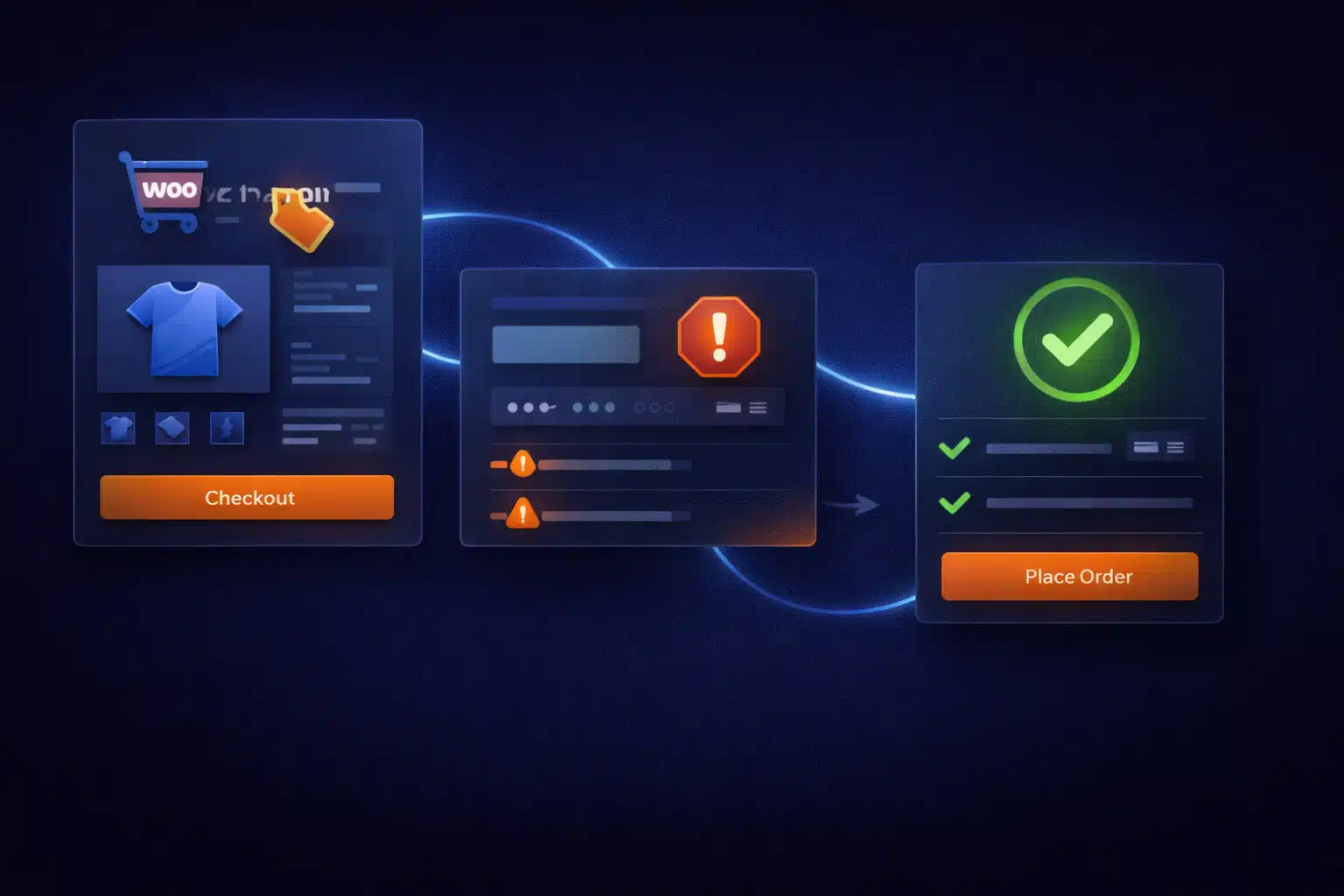
A broken checkout after a WooCommerce update is one of the most expensive WordPress problems because it stops revenue immediately. The tricky part is that “checkout broken” can mean several different failures — from a JavaScript error that blocks the Place Order button, to a payment gateway API mismatch, to a theme override that no longer matches WooCommerce templates.
The fastest recovery usually comes from a controlled workflow: confirm the symptom, capture the actual error, isolate the failing component, then validate a full purchase flow. Guessing under pressure (disabling random plugins, rolling back blindly, or editing live files) often makes downtime longer and risks data issues.
What “Checkout Broken” Usually Looks Like
Before you change anything, identify the exact symptom. Most WooCommerce checkout failures fall into one of these buckets:
- Place Order button does nothing (commonly a JavaScript error or blocked AJAX request).
- Checkout loads, but payment methods disappear (gateway compatibility or conditional logic conflict).
- Checkout throws an error after submitting (server-side PHP fatal, validation error, or gateway response error).
- Spinning loader forever (failed AJAX endpoint, blocked REST, caching/mu-plugin security rule, or mixed content).
- 500 / critical error only on checkout (a checkout-specific plugin/theme hook is failing).
- Orders create but payment fails (gateway API change, webhook mismatch, or SSL/cURL/server config).
Once you know which bucket you’re in, the investigation becomes much faster.
Why WooCommerce Updates Break Checkout
Checkout is a high-complexity page. It relies on multiple systems working together:
- WooCommerce core (checkout fields, session/cart, AJAX endpoints)
- Payment gateways (Stripe/PayPal/etc. scripts + server requests)
- Theme templates & overrides (checkout markup and hooks)
- Extensions (subscriptions, fees, shipping rules, custom fields, one-click upsells)
- Front-end JavaScript (validation, field updates, payment UI)
- Caching/security layers (WAF rules, minification, script delay, login/cookie behavior)
An update can change hooks, scripts, template structure, or request patterns. If any dependency lags behind, checkout breaks.
Common Mistakes That Make It Worse
These are the “panic fixes” that often extend downtime or create new issues:
- Rolling back WooCommerce immediately without checking if the update also triggered database updates or template changes.
- Minify/combine/delay everything (especially with performance plugins) and accidentally break gateway scripts.
- Disabling random plugins without isolating the failing one — sometimes you disable the wrong thing and lose the trail.
- Editing checkout templates live to “patch it” (hard to revert; can break again on the next update).
- Assuming it’s “WooCommerce bug” when it’s actually a gateway extension or theme override.
The safest approach is to collect evidence first, then change one thing at a time.
The Safe Fix Path (Fast, Controlled, Production-Friendly)
Here’s the workflow that restores checkout with the least risk.
1) Confirm the scope (is it all orders or just one path?)
- Test checkout on an incognito window (logged-out user).
- Test with a simple product (no variations, no complex rules).
- Test with a basic payment method if available (e.g., Cash on Delivery, bank transfer) to isolate gateway issues.
If “offline” payment works but Stripe/PayPal fails, you’ve already narrowed the problem dramatically.
2) Check the browser console (most checkout breaks are visible)
If the Place Order button does nothing, open the browser devtools and check the console:
- JavaScript errors (often from theme scripts or a plugin injecting code)
- Blocked requests (CORS, mixed content, ad blockers, CSP)
- Failed AJAX calls (look for errors on
?wc-ajax=checkoutor REST endpoints)
One clean console error can save hours of guessing.
3) Check WooCommerce status logs (gateway failures leave traces)
Many gateway issues do not show as “site errors.” They show in WooCommerce logs:
- Payment gateway log entries (authentication, API errors, webhooks)
- Checkout validation failures
- Blocked callbacks/webhooks
If the update included a gateway plugin update, check that plugin’s changelog and any new requirements (API keys, webhook endpoints, PHP version).
4) Isolate the failing component with a minimal toggle test
Instead of disabling everything, do controlled isolation:
- Temporarily switch to a default theme (only if you can do it safely) to rule out theme overrides.
- Temporarily disable only checkout-related plugins first (gateways, checkout field editors, shipping/fees, order bumps).
- If you use performance plugins: temporarily disable JS delay/minify for checkout only and re-test.
The goal is to discover whether the breakage lives in the theme layer, a gateway layer, or a performance/security layer.
5) Fix the root cause (don’t stop at “it works now”)
Once you identify the culprit, apply a proper fix:
- Gateway compatibility: update the gateway plugin, confirm webhook configuration, verify server requirements (cURL/SSL), and re-test live transactions.
- Theme override mismatch: remove/update outdated template overrides and rely on hooks or modern templates.
- JavaScript conflict: remove conflicting script injection, exclude checkout from optimization, or patch the conflicting code properly.
- Caching/security interference: exclude checkout/cart/account pages from caching and ensure AJAX/REST calls aren’t blocked by WAF rules.
Then test again with a full purchase flow.
Checkout Testing Checklist (After You Apply a Fix)
Don’t publish the fix until you validate the whole funnel:
- Add to cart → cart updates correctly
- Proceed to checkout → checkout loads without console errors
- Apply coupon (if used) → totals update
- Change shipping method → totals update
- Place test order with each major payment method
- Confirm order emails, order status updates, and thank-you page loads
A checkout that “loads” but fails payment is still broken — and often harder to detect unless you test end-to-end.
Why This Problem Often Happens Only on Checkout
Many sites load dozens of scripts and plugin hooks, but only checkout triggers:
- Gateway scripts and tokenization
- Checkout field validation
- Shipping/tax recalculation via AJAX
- Cart/session edge cases
That’s why the homepage can be fine while checkout is completely unusable. Checkout is where conflicts become visible.
How to Prevent Checkout Breakage on Future Updates
- Staging validation for WooCommerce + gateway updates (especially major versions).
- Update one major piece at a time (WooCommerce core, theme, gateway, checkout extensions).
- Keep template overrides minimal and update them when WooCommerce changes templates.
- Exclude checkout from aggressive performance settings (script delay, combine, defer can break gateway flows).
- Monitor logs after updates and test a real transaction path.
If your checkout is currently broken after an update, the fastest safe move is to capture the real error (console + logs), isolate whether the failure is theme, gateway, or optimization-related, then apply a targeted fix and validate the full purchase flow. That approach restores sales quickly and prevents repeat outages on the next update.