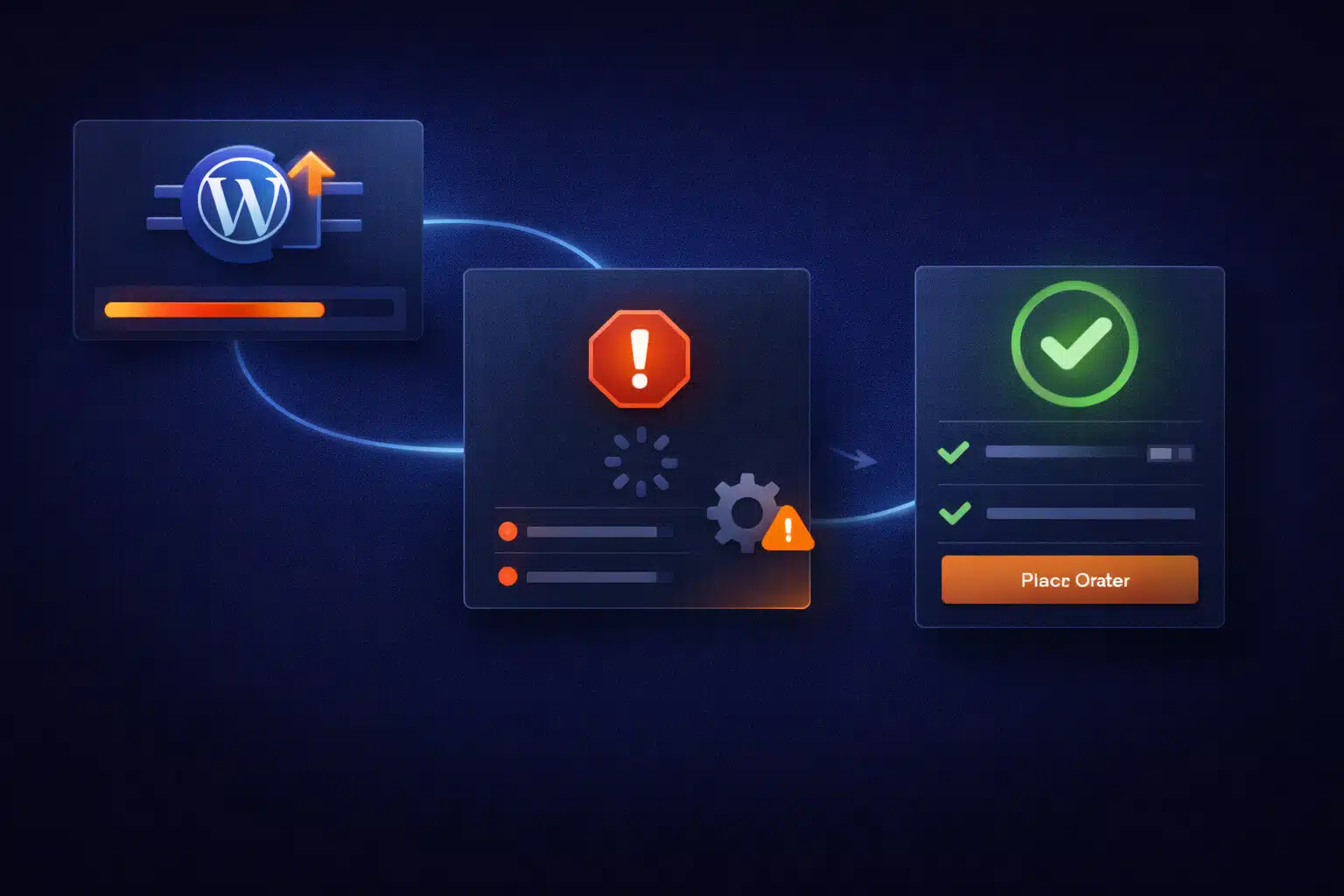
A failed WordPress core update looks scary, but in most cases it’s recoverable without reinstalling WordPress or losing data. What matters is how you respond in the first few minutes. Panic actions—like restoring random backups or re-running updates blindly—often create more damage than the failed update itself.
The goal is simple: restore a consistent core state, confirm database integrity, and only then resume normal operation.
What “WordPress Core Update Failed” Actually Means
During a core update, WordPress temporarily replaces critical files. If that process is interrupted, you can end up with a mix of old and new core files. Common interruption points include:
- Server timeout or PHP fatal error mid-update
- Insufficient disk space or file permission issues
- Hosting resource limits (CPU, memory, process limits)
- Security rules or WAF blocking update requests
- Manual interruption (browser closed, connection lost)
The result is an inconsistent core state—WordPress can’t reliably load because required files don’t match the expected version.
Typical Symptoms After a Failed Core Update
- White screen or 500 error immediately after the update attempt
- “There has been a critical error on this website”
- Update stuck in maintenance mode
- wp-admin inaccessible while front-end partially loads (or vice versa)
- Missing core files errors or PHP fatals referencing
wp-includesorwp-admin
These symptoms usually indicate a partial update—not a corrupted database.
Why Core Update Failures Are Especially Sensitive
Unlike plugin or theme updates, core updates touch files WordPress needs to boot. If those files are incomplete or mismatched:
- Plugins and themes may not load at all
- Error handling can fail before WordPress renders anything
- Automatic recovery mechanisms may not trigger
That’s why core update failures require a more careful, structured recovery.
Common Mistakes That Make Recovery Worse
These actions frequently turn a recoverable issue into extended downtime:
- Re-running the update repeatedly without fixing the underlying problem
- Restoring an old backup blindly after database version changes
- Deleting random core folders without understanding what’s missing
- Editing core files manually to “patch” errors
The safest fixes are controlled and reversible.
The Safe Recovery Path (Step by Step)
This workflow restores WordPress cleanly without risking data loss.
1) Check maintenance mode and clean it up
If the update stopped mid-process, WordPress may be stuck in maintenance mode. Removing the temporary maintenance flag allows WordPress to attempt loading again.
If the site loads after this step, do not resume updating yet—first verify the core state.
2) Identify which core version WordPress expects
Check the database version WordPress is trying to load versus the files currently present. Mismatches here explain many fatal errors after failed updates.
This helps you decide whether to complete the update or restore the previous version cleanly.
3) Restore a consistent core file set
The safest fix is to ensure all core files match a single WordPress version:
- Replace core directories (
wp-admin,wp-includes) with a clean copy - Do not overwrite
wp-content - Preserve configuration files (
wp-config.php)
This removes partial-update inconsistencies without touching content or settings.
4) Complete or roll back the database update deliberately
If the database update started but didn’t finish:
- Complete it intentionally after core files are consistent, or
- Restore database consistency only if you are certain no irreversible changes occurred
Random rollbacks at this stage are risky.
5) Validate WordPress before enabling anything else
Before updating plugins or themes again:
- Confirm wp-admin loads cleanly
- Check front-end pages
- Review error logs for lingering fatals or warnings
Only once WordPress itself is stable should you continue with other updates.
Why Core Updates Fail Even on “Good” Hosting
Core updates fail not just because of “bad hosting,” but because of real-world constraints:
- Low PHP memory or execution time limits
- Disk space exhaustion during extraction
- Security modules blocking file writes
- Multiple updates running concurrently (cron, auto-updates)
Understanding which constraint applied helps prevent the next failure.
How to Prevent Core Update Failures in the Future
- Use staging for major core updates, especially if the site is business-critical.
- Ensure sufficient disk space and PHP limits before updating.
- Avoid running multiple updates at once (core + plugins + themes).
- Monitor logs during updates instead of clicking away.
- Have a known recovery process instead of improvising under pressure.
A failed core update is stressful, but it’s rarely catastrophic. With a calm, structured approach, you can restore WordPress safely, protect your data, and prevent the same failure from happening again on the next update.