
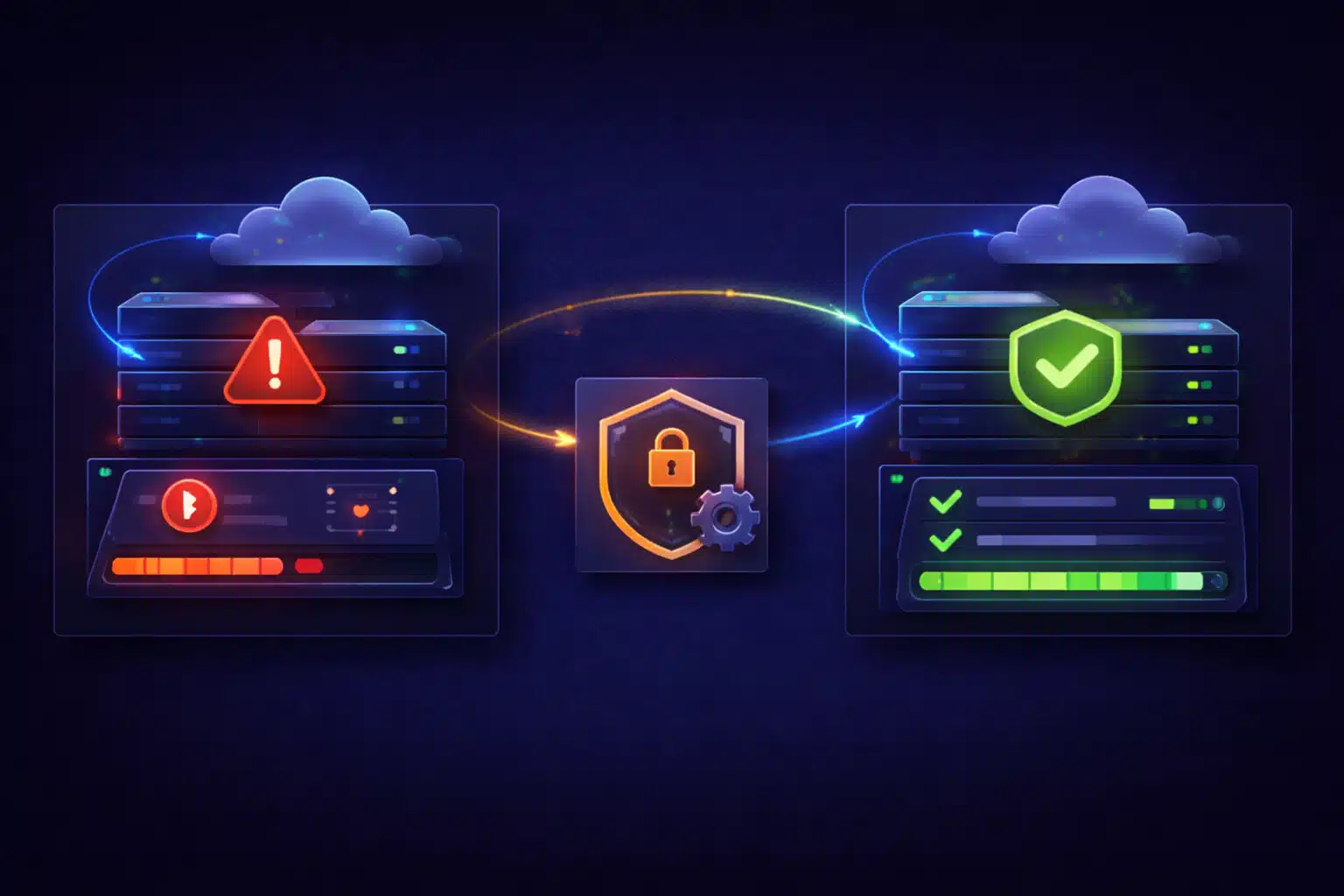
If your WordPress site went down right after a hosting migration, it doesn’t mean the migration “failed.” In most cases, the files and database are intact — but the new environment behaves differently. Small differences in PHP version, server configuration, file permissions, or caching layers are enough to break a site that worked perfectly on the old host.
The key to a fast recovery is understanding what changed during the migration, not blindly restoring backups or undoing the move.
Why Hosting Migrations Commonly Break WordPress Sites
WordPress is sensitive to its runtime environment. A migration usually changes more than just the server location:
- PHP version (often upgraded automatically on the new host)
- PHP extensions (missing or different versions)
- File permissions and ownership
- Web server behavior (Apache vs Nginx, rewrite rules)
- Caching layers (server cache, object cache, CDN)
- Security rules / firewalls
Any one of these can surface errors that never appeared on the old server.
Common Symptoms After a Hosting Migration
- White screen or 500 error immediately after DNS switch
- Critical error message on front-end or wp-admin
- wp-admin works, front-end doesn’t (or the reverse)
- Images or assets missing (permissions or path issues)
- Forms, checkout, or AJAX features broken
- Redirect loops or mixed-content warnings
These symptoms point to environment mismatch — not lost data.
Why “Restore the Backup” Is Often the Wrong First Move
Rolling back to the old host or restoring a backup feels safe, but it often delays the real fix:
- The same issue will appear again on the new host
- You lose the opportunity to identify the incompatibility
- Database changes made after the migration may be lost
- Downtime is extended instead of resolved
The better approach is to make the new environment compatible with the site — or update the site to match the new environment.
The Safe Diagnosis Path After a Migration
This workflow helps you recover quickly without guesswork.
1) Confirm the PHP version and extensions
Many sites break simply because the new host runs a newer PHP version. Check:
- PHP version (compare old vs new)
- Required extensions (curl, mbstring, intl, gd, imagick)
- Memory limits and execution time
If the site worked on PHP 7.4 but the new host defaults to PHP 8.1, incompatibilities are very common.
2) Check file permissions and ownership
Incorrect permissions can prevent WordPress from loading files or writing cache data:
- Theme/plugin files not readable by the web server
- Uploads directory not writable
- Incorrect file ownership after migration
These issues often cause 500 errors or broken media.
3) Review error logs on the new server
Migration-related failures almost always leave traces in server logs:
- PHP fatal errors from incompatible code
- Missing include files or paths
- Permission-denied errors
Logs are far more reliable than guessing.
4) Validate URLs, paths, and SSL
After a migration, mismatches can appear in:
- Site URL and home URL settings
- Hard-coded paths inside themes or plugins
- Mixed-content issues after enabling HTTPS
These issues can break assets, forms, and AJAX requests.
Plugin and Theme Issues Triggered by Migration
Some plugins and themes depend heavily on server behavior:
- Caching plugins tied to a specific server stack
- Security plugins with strict firewall rules
- Image processing plugins relying on specific libraries
- Custom themes assuming older PHP behavior
After migration, these components may need reconfiguration or replacement.
The Correct Fix Strategy
Once you identify the mismatch, fixes are usually straightforward:
- Align PHP version with what the site supports (temporarily or permanently)
- Install missing PHP extensions
- Correct file permissions and ownership
- Adjust caching/security rules for the new environment
- Update incompatible plugins or theme code
Most “site down after migration” cases are solved by environment alignment, not by restoring backups.
How to Validate the Site After Recovery
Don’t stop at “it loads.” Check:
- Front-end pages and templates
- wp-admin access and editing
- Forms, search, and AJAX features
- If WooCommerce: cart, checkout, payments, and emails
Migration issues often hide in edge cases.
How to Prevent Migration Downtime in the Future
- Audit the target server before migrating
- Match PHP versions during the move
- Test on a staging domain or hosts file
- Plan DNS changes carefully
- Have rollback access, but don’t rely on it as the main fix
A hosting migration doesn’t have to mean downtime. When you treat it as an environment transition instead of a file transfer, most issues become predictable and recoverable. If your site is currently down after a migration, focus on identifying what changed on the new host — once that’s fixed, the site usually comes back online quickly and stays stable.