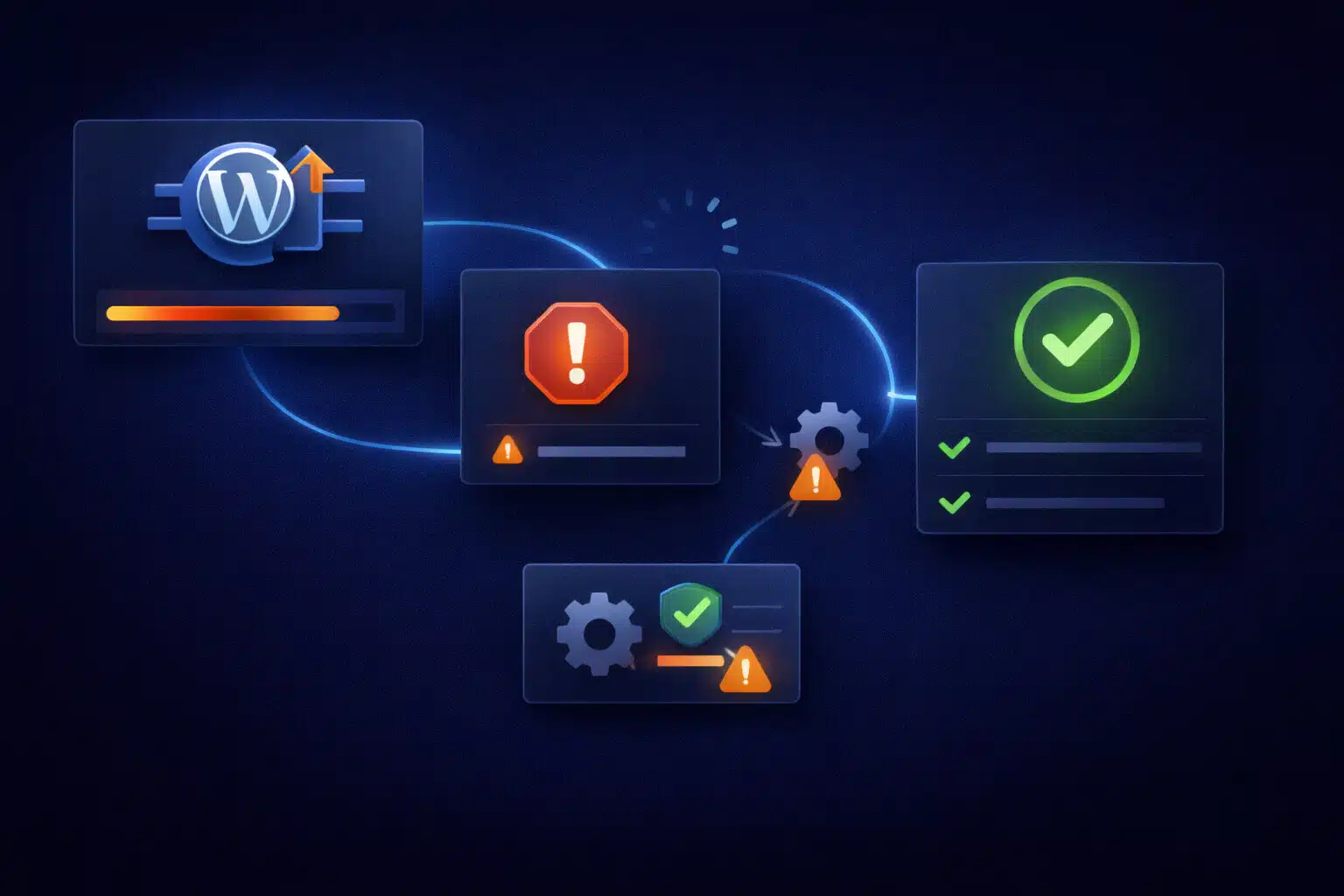
If your WordPress site went down right after a plugin update, you’re dealing with one of the most common “instant outage” scenarios in WordPress. The important thing to know is that this is usually deterministic — meaning there’s a specific error and a specific component causing it — and you can recover quickly if you follow a controlled process.
The mistake most site owners make is trying random “fixes” under pressure. On production sites, trial-and-error can turn a 20-minute recovery into hours of downtime.
Why a Plugin Update Can Take a Site Down
Plugins run inside WordPress’ execution flow. When you update a plugin, you’re changing code that may be executed on every request (front-end, wp-admin, AJAX, REST, cron). If the updated plugin:
- Calls a function/class that doesn’t exist in your environment
- Relies on behavior that changed in PHP, WordPress core, or WooCommerce
- Conflicts with another plugin hooking into the same actions/filters
- Interacts badly with theme overrides or custom snippets
…then a fatal error can occur before WordPress outputs any HTML. That’s why “the site is blank” or “500 error” is so common after updates.
Typical Symptoms (and What They Usually Mean)
- White screen (WSOD): a PHP fatal error occurs, but error output is hidden on production.
- “There has been a critical error on this website”: WordPress caught a fatal error and triggered its recovery handler.
- 500 Internal Server Error: fatal error or server-level failure (permissions, PHP-FPM, Nginx/Apache error).
- Only wp-admin works (or only the front-end works): the error is in a code path used by one side only (theme hooks vs admin hooks).
- Only one page breaks (checkout, cart, forms): the updated plugin runs only on that route (gateway, shortcode, block, builder widget).
These symptoms aren’t random — they’re clues. Your job is to capture the exact error and isolate the component that triggers it.
Common Panic Fixes That Make Downtime Worse
These actions are understandable when you’re under pressure, but they often make recovery slower or riskier:
- Disabling all plugins blindly (you lose the ability to isolate the offender, and you may break dependencies).
- Updating or rolling back multiple things at once (now you don’t know which change caused what).
- Editing plugin/theme files directly on production (hard to audit, hard to revert, and easy to introduce new failures).
- Restoring a backup without checking what changed (database changes, order data, content edits can be lost).
- “Just increase memory” as the first move (sometimes valid, often just masking the root cause).
The safer approach is to do the smallest change needed to regain access, then fix the root cause properly.
The Safe Recovery Path (Production-Friendly)
This workflow is designed to restore the site with minimal collateral damage and minimal guesswork.
1) Capture the real error (don’t guess)
If you can access server logs, look for the exact fatal error around the time the site started failing. If you don’t have server logs, you can still capture useful information safely by enabling WordPress debug logging without showing errors to visitors:
- Enable logging (not display)
- Reproduce the error once
- Check the generated log file
The goal is to identify the exact file, function/class, and line number that triggered the fatal error.
2) Identify the updated plugin and confirm it’s the trigger
Don’t assume the “last updated plugin” is always the one causing the crash, but it’s the first place to investigate. Confirm with evidence:
- The error references the plugin’s path
- The error happens on requests that load that plugin’s hooks
- Disabling only that plugin restores the site
If the error points to your theme, a “snippets” plugin, or a must-use plugin, treat those the same way — isolate the failing component based on logs.
3) Restore access with the smallest possible change
On production sites, the fastest safe recovery is often:
- Temporarily disable the failing plugin (to restore the site and regain admin access)
- Rollback that plugin version (if rollback is safe and available)
- Apply a compatibility fix (update dependent plugins/themes, patch custom code, or replace the plugin)
Avoid “global” changes until the site is stable again.
4) Fix the root cause (so it doesn’t happen again next update)
Once the site is back up, fix the reason the update broke things. Most real causes fall into these categories:
- PHP compatibility: the updated plugin requires newer PHP than your server runs (or exposes an old-code fatal in your theme/snippets).
- Plugin conflict: another plugin hooks into the updated plugin’s behavior and breaks after changes.
- Theme overrides: custom templates/functions expect older plugin APIs.
- Custom snippets: code added over time relies on plugin internals that changed.
The correct fix is usually targeted and boring: update/replace one dependency, remove one outdated override, or patch a small piece of custom code — then re-test.
5) Validate the site like a professional (not “it loads, so we’re done”)
After recovery, validate the pages that matter:
- Homepage + key landing pages
- Contact forms / lead forms
- Login and wp-admin critical screens
- If WooCommerce: cart, checkout, payment, thank-you page
- Search, menus, and any dynamic components (sliders, filters)
Many “fixed” sites break again because only the homepage was checked.
Why This Happens Even on “Well Maintained” Sites
Even well-maintained WordPress sites can break on updates because the ecosystem is modular. A plugin update can be correct on its own, but your specific combination of:
- Theme and child-theme customizations
- Other plugins (especially builders, caching, security, WooCommerce extensions)
- Server PHP version and configuration
…creates a unique environment. That’s why a controlled update workflow (and staging validation) is the long-term solution.
How to Prevent Plugin Updates from Taking You Down Again
- Update one major component at a time (so you can isolate issues quickly).
- Use staging for risky updates (builders, WooCommerce, payment gateways, security plugins).
- Reduce abandoned plugins that haven’t been updated in a long time.
- Keep custom code centralized (prefer a small custom plugin over scattered snippets).
- Have a rollback plan (backups, version rollback tools, and a known recovery path).
Most “plugin update disasters” are preventable. The real goal isn’t avoiding updates — it’s making updates safe and repeatable.
If your site is currently down after a plugin update, focus on capturing the exact fatal error and isolating the failing component. Once you know what actually broke, the fix is usually fast — and you avoid turning a short outage into a long incident.